Use the AI pose changer with your own model photo or a virtual model. Keep the current outfit, choose a pose and scene, then review and download a 2K photo.
1
Model
JPG, PNG or WebP · Up to 10 MB · No credits to upload
Use the model’s current outfit. No clothing upload is needed. Choose a pose or scene below.
Preset cards are pose and scene illustrations, not generated samples.
Additional instructions (optional)
1 photo · 1 credit total · 2KSign in to generate
Choose a new pose or scene to edit the model’s current outfit photo.
Upload a model photo or choose a model and your photo settings. Your generated photos will appear here.
Review identity, garment color, prints, logos, anatomy and crop before publishing. AI results can vary and do not verify sizing or fit.
Real tool output · AI-generated example
AI pose changer examples
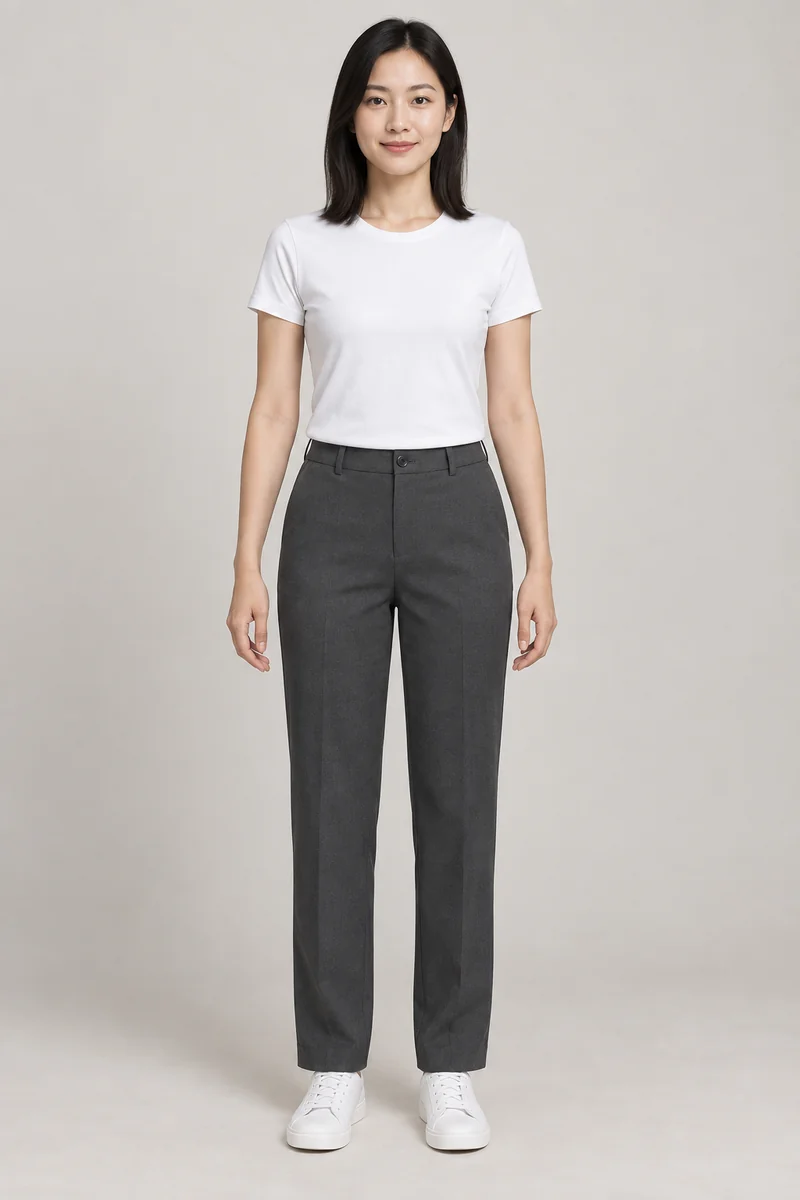
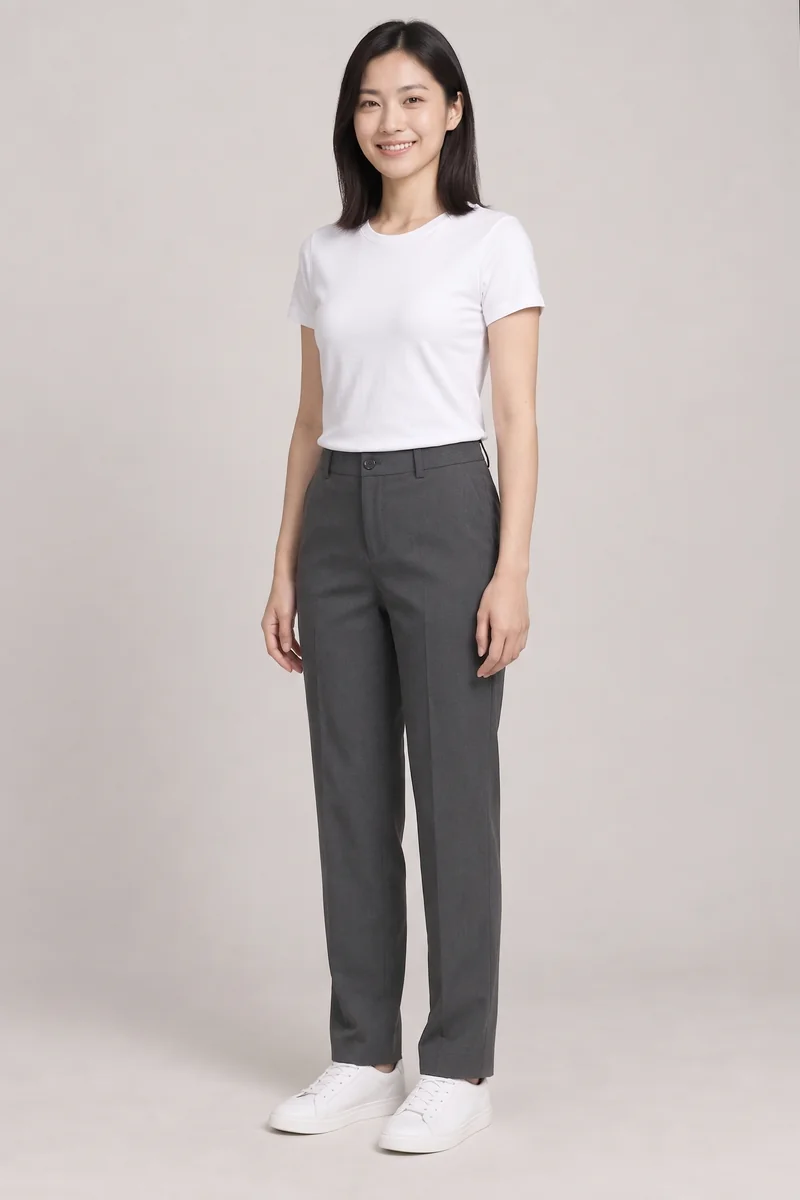
This result was generated with Ava, full-body framing, Keep model outfit, Three-quarter and Keep original scene. No garment image or additional instructions were supplied. The original 2K download is 1686 × 2528 pixels; the previews below are optimized for the web.
Input · Ava virtual modelAI result · Three-quarter pose
Compare the white T-shirt, gray trousers, shoes and full-body crop. The output changes the body angle and facial expression, including the smile. Inspect these details before publishing: a pose edit does not guarantee an identical face, expression or garment detail.
Upload your own authorized adult model photo, choose a model from the library, or create one. Adjust the full-body, upper-body or lower-body crop before choosing a pose. Keep the original crop if your photo already shows only part of the body.
02
Keep the current outfit or add a new garment
Keep model outfit needs no clothing upload. For a product you sell, switch to Reference outfit and add clear garment photos. Choose a pose that leaves the important garment details visible.
03
Match the scene to the listing
Keep original preserves the source scene. Studio and outdoor presets replace it. Inspect the face, hands, garment edges and print placement at full size before publishing.
Frequently asked questions
Can I change only the pose?
Yes. Select Keep model outfit, choose a new pose and leave the scene on Keep original. No new garment reference is required.
Which poses work with cropped photos?
Upper-body framing supports front, three-quarter and hand-on-hip views. Lower-body framing supports front, three-quarter and walking views. The tool keeps your selected crop.
What happens if a request is interrupted?
The saved request remains available. Use Check status or reconnect the same request. Confirmed failures refund their credit; an explicit retry costs one credit.